
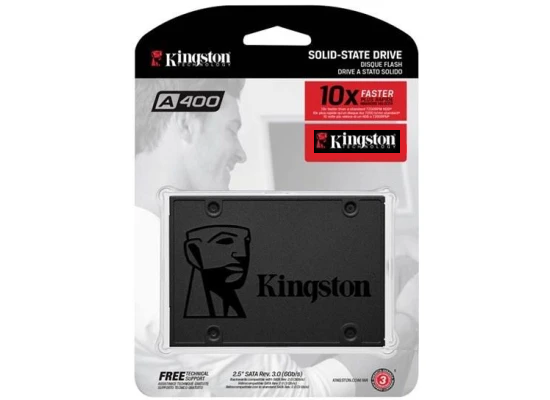
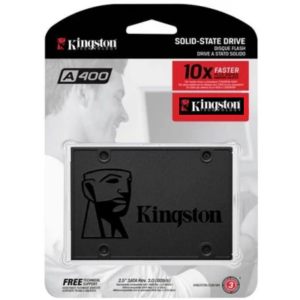
Kingston A400 SATA III 2.5 SSD Overview
Kingston A400 SATA III 2.5 SSD is designed to improve system speed, responsiveness, and overall performance for desktops and laptops.
Compared to traditional hard drives, Kingston A400 SATA III 2.5 SSD provides significantly faster boot times, reduced loading delays, and smoother daily usage.
The Kingston A400 series uses reliable TLC NAND flash memory with SATA III connectivity to deliver stable performance for office work, gaming, and general computing tasks.
Official Kingston product information:
https://www.kingston.com/en/ssd/a400-solid-state-drive
Key Features
- Faster boot and shutdown times
- SATA III 6Gb/s interface
- Reliable TLC NAND flash
- Shock and vibration resistance
- Low power consumption
- Slim 7mm design for laptops and desktops
Performance Benefits
Installing Kingston A400 SATA III 2.5 SSD improves:
- Windows startup speed
- Application loading performance
- File transfer responsiveness
- System multitasking efficiency
Suitable for:
- Daily usage
- Office systems
- Older laptop upgrades
- Budget gaming PCs
Other SSDs reference:
https://www.crucial.com/products/ssd
Technical Specifications
- Brand: Kingston
- Series: A400
- Interface: SATA III 6Gb/s
- Form Factor: 2.5-inch
- NAND Type: TLC
- Read Speed: Up to 500MB/s
- Write Speed: Up to 450MB/s
- Thickness: 7mm
- Shock Resistant: Yes
Compatibility
Kingston A400 SATA III 2.5 SSD is compatible with:
- Desktop PCs
- Laptops supporting 2.5-inch SATA drives
- SATA II and SATA III systems
Not compatible with NVMe M.2 slots.
SSD installation compatibility guide:
https://www.kingston.com/en/blog/pc-performance/two-types-m2-vs-ssd
Capacity Guide
240GB
Recommended for:
- Windows installation
- Office work
- Basic daily tasks
480GB
Recommended for:
- Gaming
- Larger applications
- Balanced storage usage
960GB
Recommended for:
- Large files
- Multiple games
- Professional workloads
Installation Guide or Free Tech Support
- Power off system
- Connect SATA cable
- Connect power cable
- Mount SSD securely
- Install windows 10 or windows 11 or clone existing drive we will help you for free
- Configure boot priority in BIOS
SSD installation guide:
https://www.wikihow.com/Install-a-SATA-Drive



Reviews
There are no reviews yet.